 Print
Print How to Use SWA’s Premium Support Manager for Expert Help
SWA’s premium support is built around a two‑way Help Box where users and SWA Managers can chat, run paid consultations, and leave reviews. Here’s how to use it from both sides.
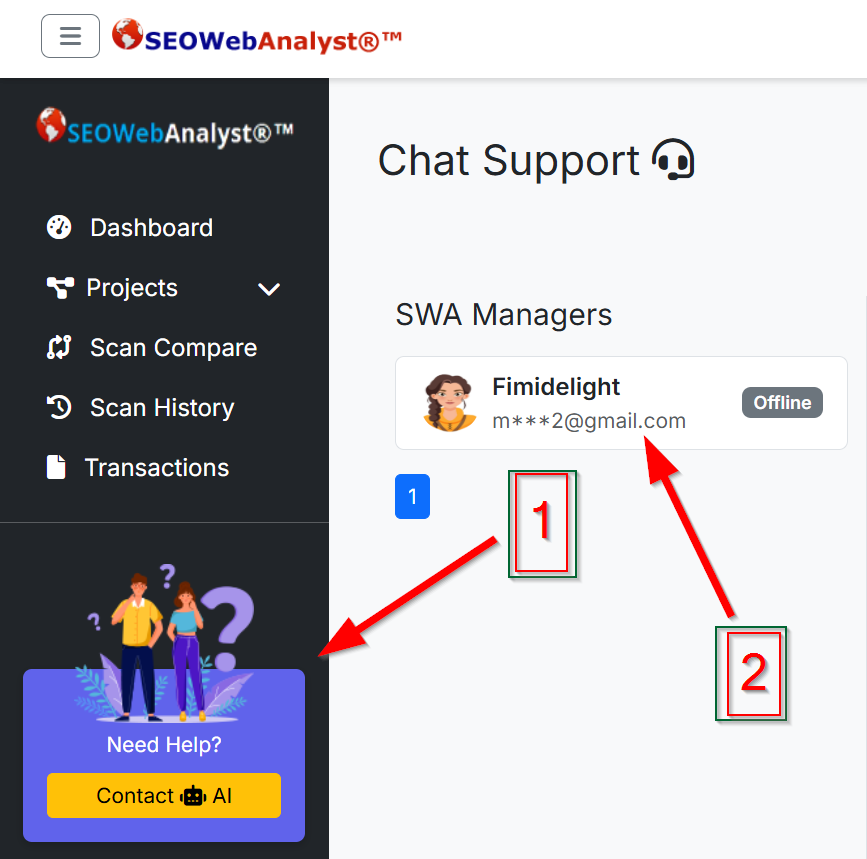
- Log in to your SEO Web Analyst account and go to your main dashboard (/app/).
- Open the Help Box (support/chat icon or “Help Box” entry in the app navigation). This loads the help-box page, which is your dedicated support area.
- On the left, you’ll see a list of SWA Managers with their avatar, name (truncated if very long), and online/offline status, refreshed every few seconds.
- On the right, you’ll see the selected manager’s profile:
- Total users they’ve consulted.
- Average rating and star score.
- Recent reviews and pagination to read more feedback before you start.
If you haven’t started a chat yet, the main panel shows the manager’s stats and a Start Chat button (enabled only when at least one manager is online).
Starting a support conversation
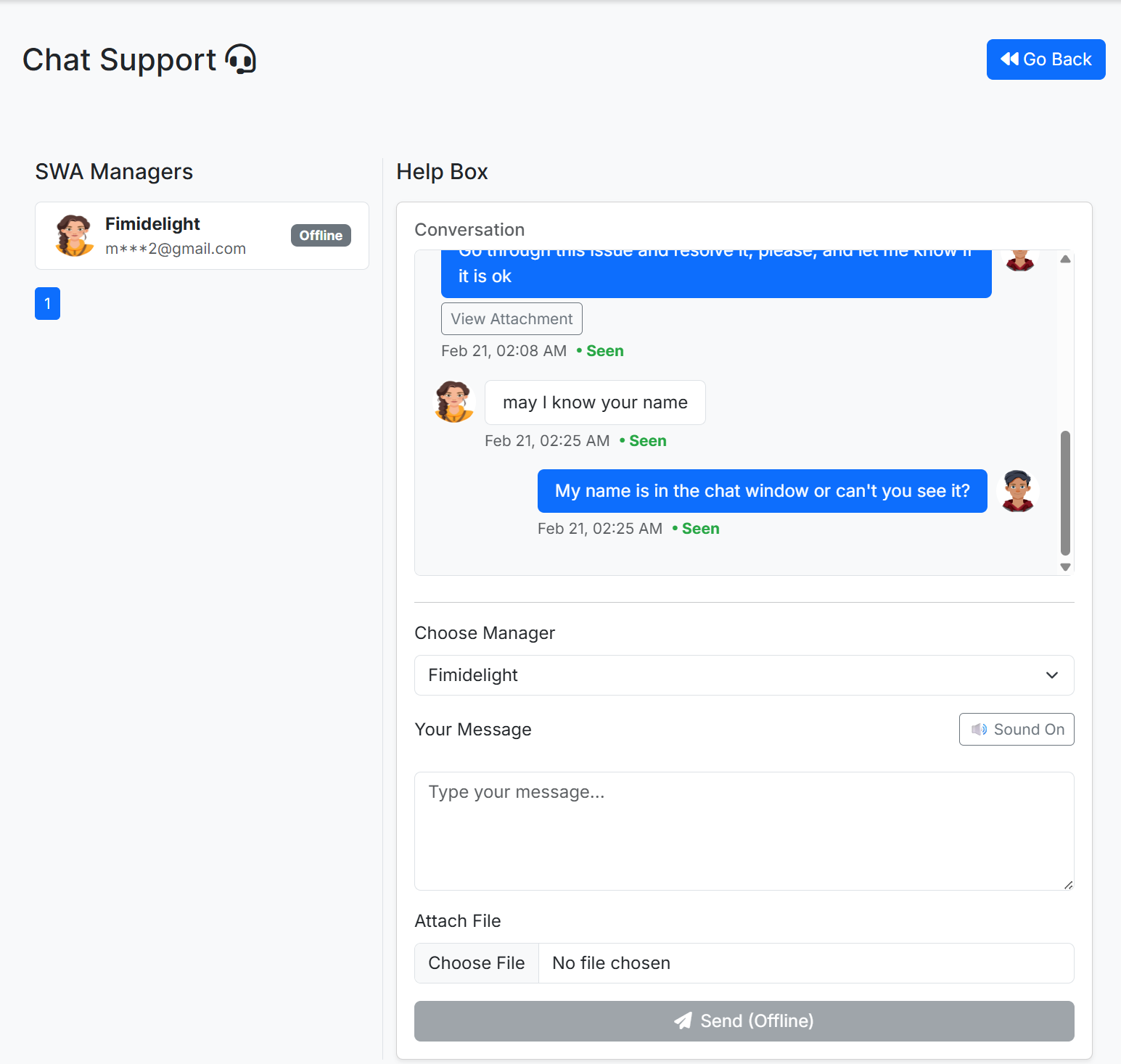
- Choose a manager from the dropdown “Choose Manager” in the Help Box form. If you don’t care who picks it up, leave it as “Any Available”.
- Type your message in “Your Message”, keeping it specific: describe your site, goal, and where you’re stuck (e.g., “We’re stuck on on‑page SEO for an e-commerce category page”).
- Optionally upload a file (PDF, CSV, TXT, JPG, PNG) if you want the manager to review a report or screenshot.
- If at least one SWA Manager is online, click Send. If no one is online, the button is disabled, and you’ll see an alert when focusing the textarea that you can’t send messages right now.
The Help Box automatically:
- Loads your conversation history with that manager, including timestamps and attachment links.
- Shows typing indicators (“You’re typing…”, “SWA Manager is typing…”) so you see live activity.
- Plays a notification sound (if you keep sound enabled) when new messages arrive.
How Consultation and reviews work (user side)
- When you start chatting with a manager, they may propose a consultation based on your needs (e.g. multi‑step SEO plan, a growth roadmap).
- The platform tracks your consultation as an “unpaid” or “pending” item, and if you attempt to access certain flows without paying, you are redirected to a consultation payment block so you can complete payment before continuing.
- Once payment is made and the consultation is marked completed, you’ll see a review form in the Help Box:
- Rate the manager from 1 to 5 stars.
- Optionally, leave written feedback about your experience.
- Your rating and comment are added to the manager’s profile, contributing to their average rating and visible reviews for future users to read.
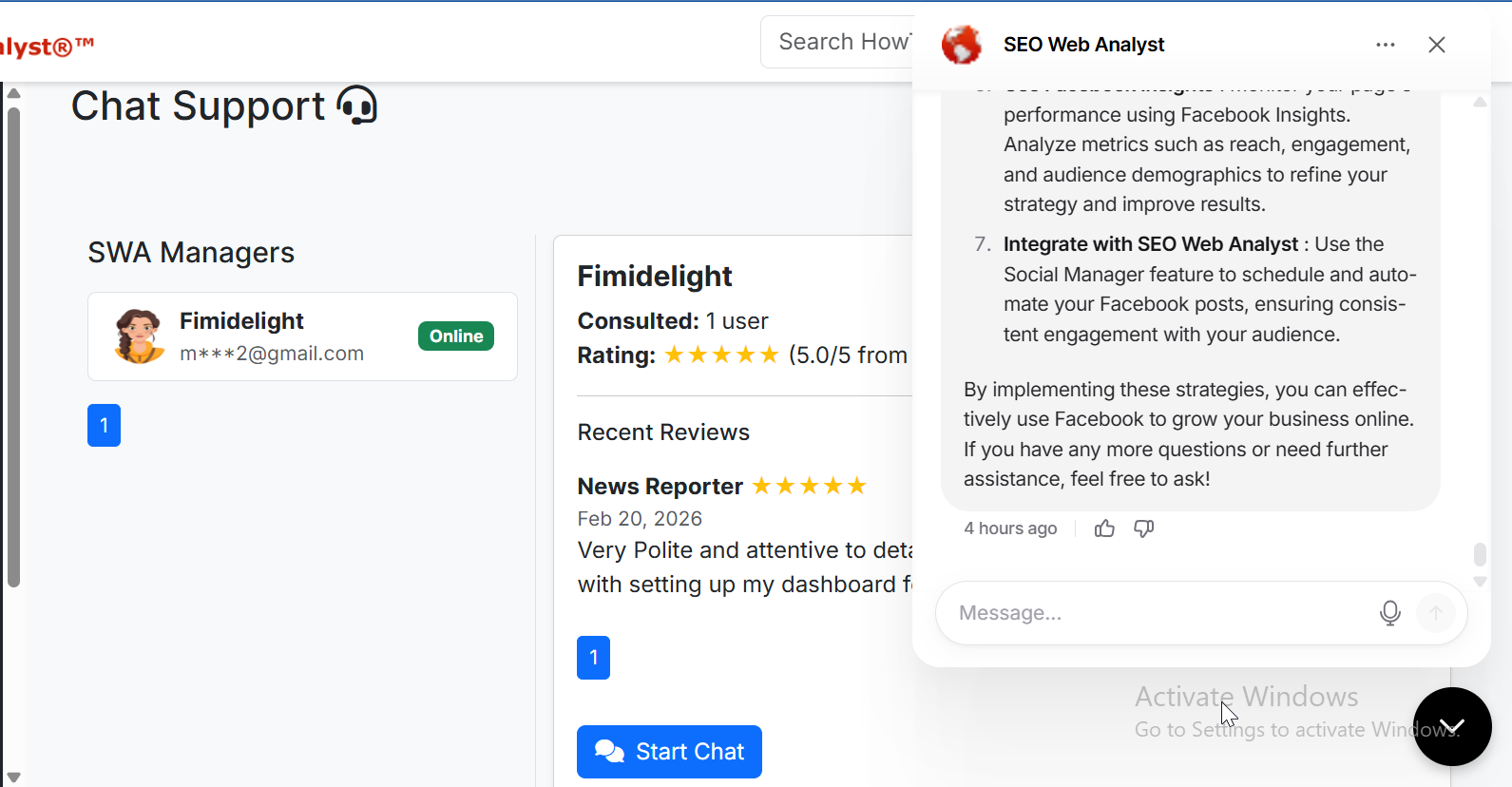
This means every consultation not only gives you a tailored plan, but also helps the ecosystem by rewarding strong experts and warning others about poor experiences. Also, if you are on our higher-tier plans, i.e., the Enterprise and Agency plans, you will have access to the AI-Marketing Assitance where you can ask it to help develop a surefire way you can utilize a digital marketing strategy for your business, integrating SEO Web Analyst asyour core foundation for organic growth...you can see the AI-Marketing Assitance in action from the screen above.
For SWA Managers: handling support via SWA Chat
SWA Managers use a separate interface called the SWA Manager Dashboard, focused on managing inbound conversations efficiently.
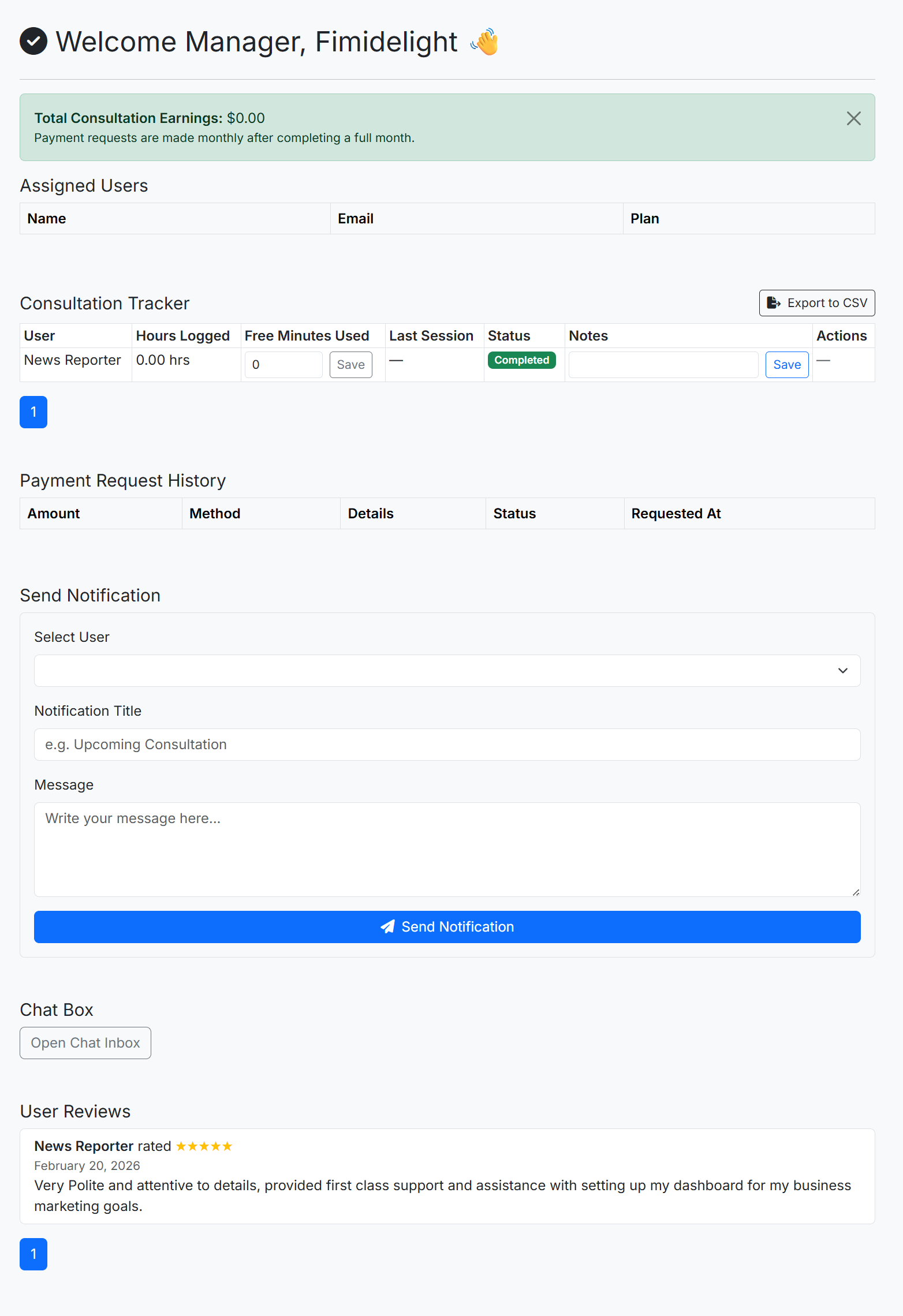
Accessing the SWA Manager console
- Log in with a manager account. Role‑based redirect takes you to SWA Dashboard (/app/swa-dashboard) instead of the regular user dashboard.
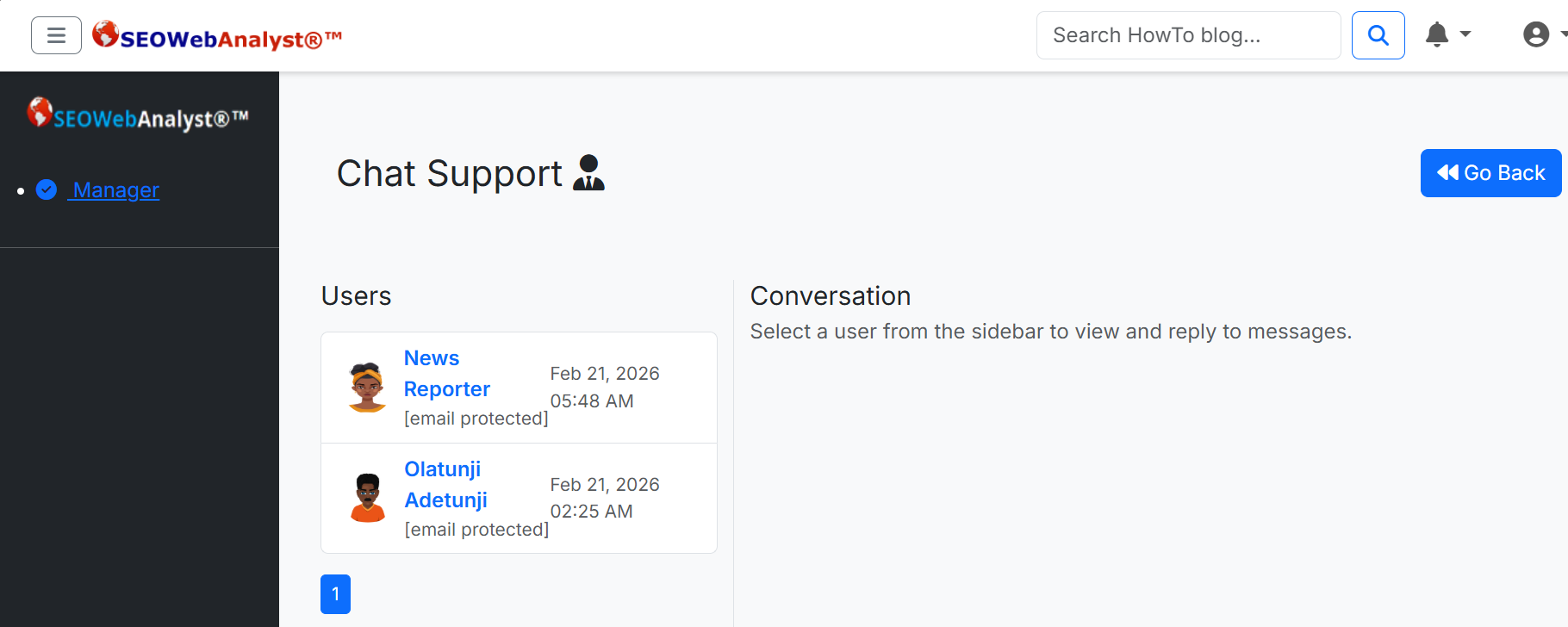
- From the dashboard, open Chat Support (SWA Chat). This loads:
- A Users sidebar listing all users who have messaged you.
- A main Conversation pane for the currently selected user.
The Users sidebar shows:
- Each user’s avatar and name (truncated if the name is very long).
- Their email (for context) and the timestamp of the last message.
- Pagination to move through all users who have contacted you.
Managing conversations and replies
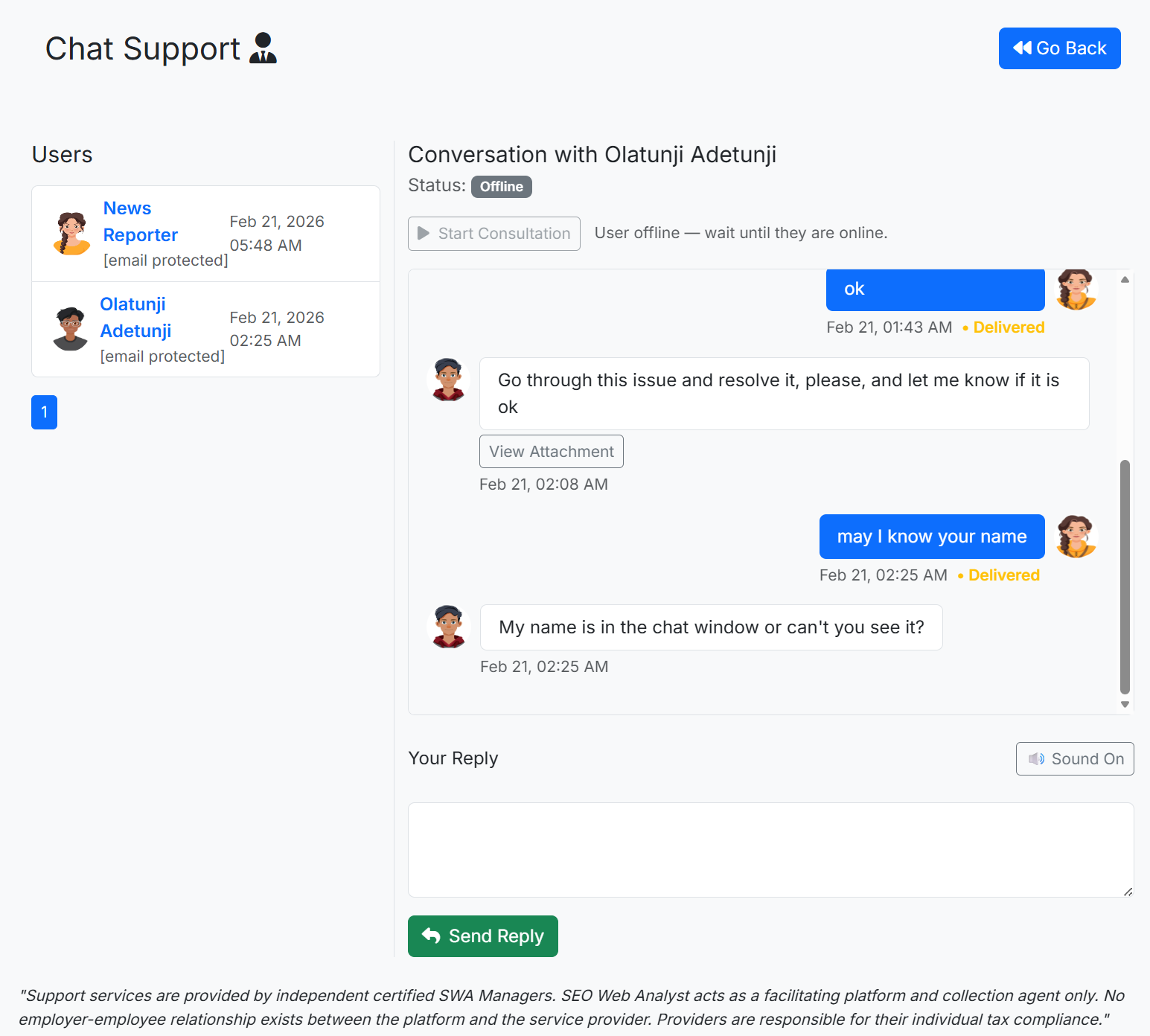
- Click a user in the list to load Conversation with [User Name].
- At the top, you’ll see the user’s online/offline status, updated regularly via AJAX.
- The message thread shows both sides of the conversation, including attachments, sender avatars, timestamps, and a delivery status (“Delivered” / “Seen”) on manager messages.
- Type your answer in “Your Reply” and hit Send Reply. The message is:
- Saved via /app/send-manager-reply.php.
- Appended live to the thread.
- Marked with the correct status based on whether the user has seen it.
Typing indicators and chat sound notifications work in the manager interface as well, so you know when a user is actively responding and when a new message appears.
Starting and tracking consultations (manager side)
From the manager's view of a user conversation:
- The system checks whether there is an existing consultation between you and that user with status pending_approval or active.
- If not, you’ll see a “Start Consultation” button:
- Clicking it sends a consultation request for that user.
- If the user is offline, the button is disabled, and a note suggests waiting until they are online.
- Once a consultation is active or pending, the interface shows a status message (“Consultation requested, waiting for user approval” or “Consultation already active”).
You use the chat to gather context, share a plan, and guide the user through their SEO/digital marketing tasks within the agreed consultation time.
Handling notifications and staying responsive
Both users and SWA Managers benefit from notifications:
For SWA users, this means:
A notification bell in the header shows the unread notification count (updated regularly via a JSON endpoint).
- Clicking the bell opens a dropdown built by load-notifications.php, listing each recent notification with its title, send time, and body text.
- Clicking a notification marks it as read via mark-as-read.php and updates the unread count.
For managers, this means:
- You can see when a user starts a new conversation or responds in an existing one.
- You stay on top of consultation approvals and other account events without leaving the dashboard.
Best‑practice tips for getting the most from Help Box
For SWA users:
- Be specific: describe your site, metrics, and goals instead of “I need help with SEO”.
- Share assets: use the file upload to share audits, screenshots, or CSVs that show your current state.
- Use reviews: after a consultation, leave an honest rating and comment to help other users choose strong SWA Managers.
For SWA Managers:
- Respond quickly when online; even a short first response reassures users that someone is there.
- Summarize and confirm: restate the user’s goal (“So you want to increase organic traffic to your product pages by 30% in three months”) before giving your plan.
- Track consultations cleanly: always use the Start Consultation button so the system can enforce payments and unlock the review flow.
- Used correctly, the Help Box plus SWA Manager environment turns your platform into a guided, human‑assisted experience where users don’t just have tools—they have certified specialists actively helping them get results.
To become a certified SWA Manager, you need to enrol in the SWA Academy and earn the associated professional certification. You can find this tab located on the right side of your toggle button, then click on the SWA Academy tab. On the page, kindly follow the instructions and choose the Become a certified SWA Manager (Professional Digital Marketer Diploma) option.
Guidelines to become a certified SWA Manager
You must complete the SWA Academy online via your VLE (Virtual Learning Environment), covering practical digital marketing/SEO skills/etc.
You then sit for the exam and pass the required assessments.
You pay for the international professional diploma certification and get certified.
Only after this training + certification can you be eligible to operate as an SWA Manager and provide paid consultations via the Help Box/SWA Manager environment.
So the path is: learn through SWA Academy → pass the exams → obtain the diploma certification → be eligible to serve users as an SWA Manager on the platform.